
Moor Bar
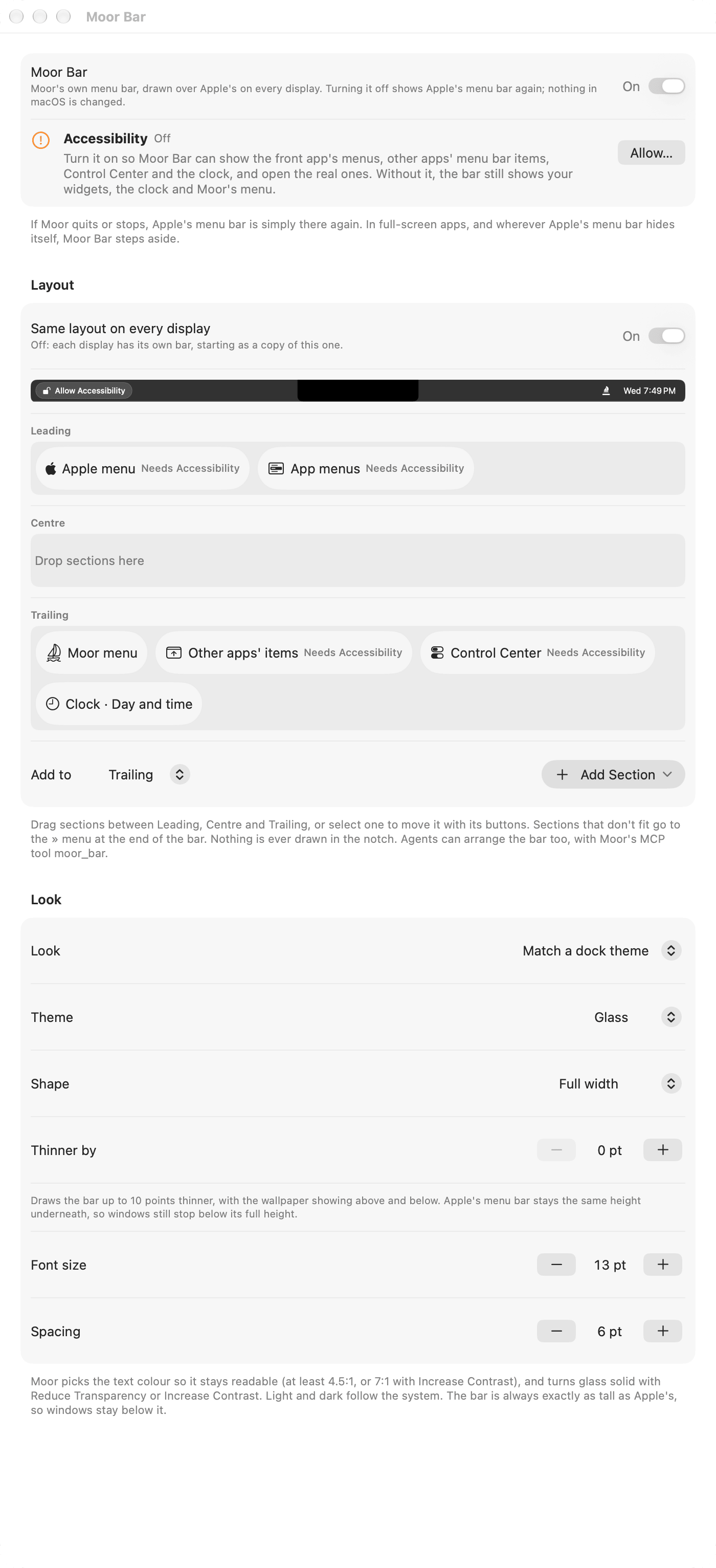
Moor Bar is Moor's own menu bar. It's drawn exactly over Apple's menu bar on every display, and it shows what you put in it, in the look you choose. Your AI agent can design it too.


Turn it on in Settings → Parts. Everything below is in Settings → Moor Bar, which appears while it's on. See Turn parts on and off.
It does everything Apple's bar does: the Apple menu and the front app's menus open the real menus, other apps' menu bar items open theirs, and Spotlight, Siri, Control Center and the clock open the real ones. Those need Accessibility (see Permissions); everything else works without it.
What can go in the bar
| Section | What it shows |
|---|---|
| Moor menu | Moor's icon. Click it for Moor's menu: profiles, docks, parts and settings. |
| App name | The app in front, with its icon. Click it to hide or quit that app. |
| Clock | The date and time. Pick a format, or type your own pattern. |
| Widget | Any of Moor's widgets, as one line: the time, your next event, today's sales, CI, your battery. Click it for the whole widget, right under the bar. |
| Text | Words of your own, up to 60 characters. |
| Space | Empty room, 2 to 200 points wide. |
| Divider | A thin line between sections. |
| Apple menu | Apple's menu. Click it for the real Apple menu. |
| App menus | The front app's name, in bold, and its menus. Click one and the app's real menu opens right under it. With a menu open, slide along the bar to open the next one, as in Apple's bar. |
| Other apps' items | Other apps' menu bar items, each as its app's icon (and its text, when it shows a short one, like a timer). Hover for its name; click to open the real item. Apple's Wi‑Fi, Battery, Sound and others are drawn as symbols. Items that don't fit, and items Apple's bar can't show (behind the notch, or hidden by Mast), are in a « menu at the section's left end. |
| Control Center | Spotlight, Siri and Control Center buttons, for the ones in Apple's menu bar. Each opens the real one. |
Arrange the bar
The bar has three zones: Leading (the left, in left-to-right languages), Centre and Trailing (the right).
- Add a section: pick a zone in Add to, then Add Section. Widgets are under Add Section → Widget.
- Move a section: drag it to another place or zone. Or click it and use Move Earlier, Move Later and the zone menu. Right-click a section for the same choices.
- Change a section: click it. A clock gets its format, text its words, a space its width, a widget its own settings.
- Remove a section: click it, then Remove.
The preview at the top of Layout shows the bar as it will look.
The notch
On a Mac with a notch, nothing is drawn in the notch. Centre sections sit either side of it. The preview shows the notch in black.
When things don't fit
Sections that don't fit go to a » menu at the inner end of the trailing zone. The sections at the outer ends stay longest: the first leading ones and the last trailing ones, where your clock usually is. Click » to open what's hidden.
Every profile
Turn on Own bar for “Profile” to give the active profile its own bar, starting as a copy of the shared one. Switching to that profile switches bars, as Deck does with its widgets. Turn it off to go back to the shared bar. Agents use PATCH /v1/bar/layout {"ownLayout": true}.
Every display
Same layout on every display is on to begin with: every display shows the same bar. Turn it off and each display gets its own bar, starting as a copy. Pick the display in Display to edit its bar. Turning the switch back on shows the shared bar everywhere again; each display's own bar is kept for next time.
Look
- Look: Match a dock theme uses a theme's material, tint, border and corners, in light and dark, the same as your docks. Custom is a solid colour, a two-colour gradient or glass, with your own colours for light and dark mode, opacity, a border and a shadow.
- Shape: Full width runs edge to edge like Apple's bar. Floating island is a rounded bar inset from the screen's edges, with your wallpaper around it. On a Mac with a notch, the island splits around it.
- Island inset, Thinner by, Font size and Spacing fine-tune it.
Moor picks the text colour, so the bar always reads: at least 4.5:1 against its background, or 7:1 with Increase Contrast. Glass turns solid with Reduce Transparency or Increase Contrast. Light and dark mode follow the system.
The default look, Glass, is the same Liquid Glass as your docks, over your wallpaper.
The bar is always as tall as Apple's menu bar (on a Mac with a notch, exactly as tall as the notch), so your windows stay below it. Thinner by draws the bar up to 10 points thinner inside that strip, with the wallpaper above and below.
Things to know
- Nothing in macOS changes. Moor Bar is a window over Apple's menu bar. Apple's bar is still there underneath. If Moor quits, stops or crashes, Apple's menu bar is simply there again. Moor never changes the menu bar's settings.
- Full screen. In a full-screen app, Moor Bar steps aside and Apple's own menu bar works there as usual.
- Apple's menu bar hidden. If you set Apple's menu bar to hide itself (System Settings → Menu Bar), Moor Bar steps aside too.
- Where menus open. Apple's menus can't be moved, so the app's menus sit exactly where Apple's titles are, and each menu drops right under its title. Your other displays show the menus too, where Apple's bar has them there, and clicking one opens it on that display, as in Apple's bar. Other apps' items open their menus where Apple's bar has them, which may be a little to the side of Moor's icon. A few apps' items only answer a real click on Apple's bar; when one opens nothing, Moor shows a small menu saying so, with a way to open the app itself.
- Titles while an app changes its menus. For a moment after you switch apps, or while an app rebuilds its menus, macOS hasn't placed its titles yet. Moor then shows them one after another (never on top of each other) and moves them to Apple's places a fraction of a second later.
- Keyboard. Choose a shortcut for Open the menu bar in Settings → Shortcuts (there's none to begin with). It opens the front app's first menu; Left and Right Arrow move between menus and Escape closes, as with Control-F2. Control-F2 itself still works too.
- Control Center and Notification Center. While one is open, the bar on that display steps aside so nothing of it is covered, and comes back when it closes.
- VoiceOver. Moor Bar is one menu bar to VoiceOver, with each item named. The app's menus aren't repeated there: Apple's menu bar is still there under Moor's, so VoiceOver's menu bar command (VO-M) should open it as before.
- Mast. If Mast is on too, its Menu Bar Appearance is paused while Moor Bar is on (the bar covers Apple's), and Settings → Mast says so. Mast's hiding still works underneath. See Mast.
- Moor's icon. Moor's own icon stays in Apple's bar, under Moor Bar. Moor's menu is in the bar's Moor menu section.
- Widgets pause while no bar is showing and while the displays sleep.
- Permissions. <span id="permissions"></span>The Apple menu, app menus, other apps' items and Control Center need Accessibility. Without it, the bar shows one Allow Accessibility button in their place; it opens Settings → Moor Bar, which says what Accessibility adds and has an Allow… button for the right page of System Settings. Everything else works without it.
For agents and scripts
Your AI agent can design your menu bar. Moor's MCP server has a moor_bar tool: read the bar, add, move, change and remove sections, change the look, per display. The same is in the local API under /v1/bar, and moor bar on the command line:
moor bar                         # on or off, displays, layout and look
moor bar layout
moor bar style shape island
moor api POST /v1/bar/sections '{"type": "clock", "format": "EEE d MMM HH:mm", "zone": "trailing"}'
moor api POST /v1/bar/sections '{"type": "widget", "kind": "system.battery", "zone": "trailing", "index": 0}'
Changes show in the bar and in Settings at once. Reading works whether Moor Bar is on or off; changing needs it on.
This page as Markdown: /docs/moor-bar.md