 Moor
Moor
App icons
Moor draws every icon in its docks itself, so you can restyle them all at once or give any app a picture of your own. Only Moor's docks change — the apps themselves, Finder and Apple's Dock keep their icons, and nothing on your Mac is modified.
Icon styles
Pick a style in Settings → Icons, or while editing (⌃⌥E) from the Theme menu → App Icons.




For Tinted, choose the colour under the style picker — one of the swatches or any colour you like.
A custom icon for one app
- Right-click the app in a Moor dock.
- Choose Options → Change Icon….
- Pick any picture: PNG, JPEG or an .icns file. Square pictures look best.
The new icon shows in every Moor dock and overrides the style. To go back, right-click the app → Options → Reset Icon, or use Reset in Settings → Icons.
Looking for icons? Sites like macosicons.com have thousands of free replacement icons for Mac apps, as .icns or PNG.
Icon packs
An icon pack is a folder of pictures named after apps — Safari.png, Slack.icns — or after their bundle IDs (com.tinyspeck.slackmacgap.png). In Settings → Icons, choose Import Icon Pack… and pick the folder. Moor matches each picture to your apps, ignoring the extra words icon sites often add (“Slack-macOS-BigSur-dark.png” still matches Slack), and tells you how many it matched.
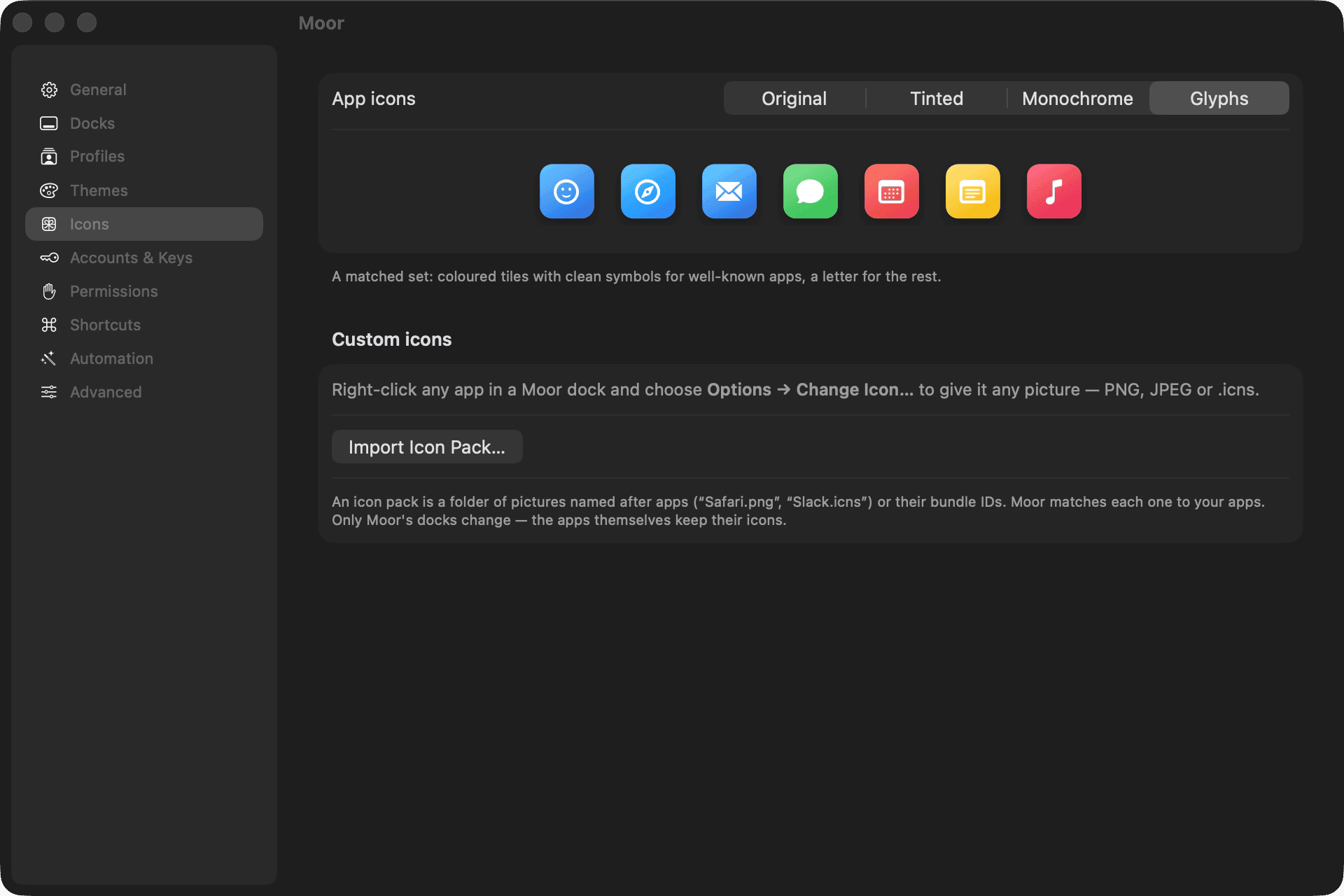
Reset All in Settings → Icons removes every custom icon at once.
Good to know
- Custom icons are saved with Moor's other data in
~/Library/Application Support/Moor/icons. - Styles apply to apps. Folders, files, widgets and the Trash keep their own look — change those with themes.
This page as Markdown: /docs/icons.md