
On this page
Helm
Helm is for windows. It has three jobs: the Window Switcher (⌥Tab), snapping a window to part of the screen, and layouts you can save and restore. It stands in for ⌘Tab and for window-arranging apps.
Turn it on in Settings → Parts. Everything below is in Settings → Helm, which appears while Helm is on. See Turn parts on and off. Helm needs Accessibility to see and move windows. Thumbnails in the switcher need Screen Recording; without it each row shows the app's icon. See Permissions.
The Window Switcher
A glass panel with every window of your open apps, minimized ones included, the most recently used first. It opens on the display with the window you're in; change that with Show on in Settings → Helm (the display with the pointer, or the main display). When you first turn Helm on, the switcher is on. You can switch it off in Settings → Helm → Window Switcher and keep the rest of Helm.
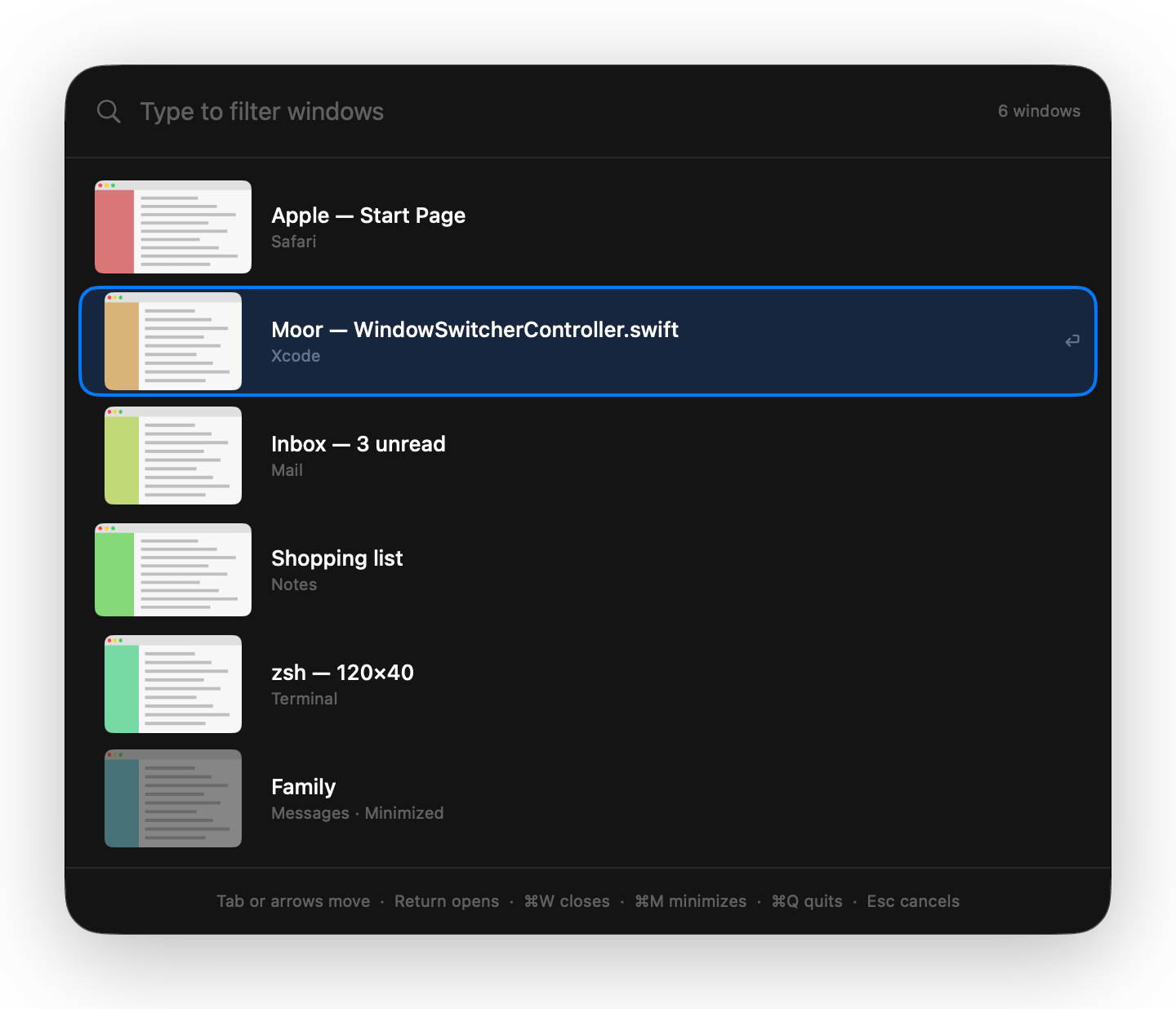
Using it
- Hold ⌥ and press Tab. The panel opens with the previous window selected.
- Keep holding ⌥ and press Tab again to go down the list. ⇧Tab or the arrow keys also move.
- Let go of ⌥ to switch to the selected window. Return does the same, and Esc closes the panel without switching.
A quick tap, ⌥Tab and let go, switches to the last window without showing the panel. You can click a row too. Change the keys under Open with.
Type to filter
Start typing and the list narrows. Every word you type has to match the app name or the window title, ignoring capitals and accents. A match at the start of the app name comes first. ⌘Delete clears what you typed.
Act on a window
| Key | Does |
|---|---|
| ⌘W | Closes the selected window |
| ⌘M | Minimizes it |
| ⌘Q | Quits its app |
It can stay open
Letting go of ⌥ switches, however long you looked and however many times you pressed Tab, just like ⌘Tab. Typing is awkward if the panel closes when you let go, though, so once you've typed, pressed an arrow key, or closed, minimized or quit from the panel, letting go of ⌥ keeps the panel open. Then:
- Return opens the selected window.
- Esc, a click outside the panel, or ⌥Tab again closes it without switching.
Prefer it to switch every time? Turn on Switch when I let go of ⌥, even after typing. It's off by default.
Large previews
Turn on Large previews in Settings → Helm to see the windows as a grid of big pictures, each with its app's icon, instead of a list. ↑ and ↓ move a whole row; Tab, ← and → move one window at a time.
Windows on other Spaces
The switcher lists the current Space's windows. Turn on Show windows from all Spaces to include the rest. Those rows are marked Other Space, and choosing one switches to its Space. It's off by default.
It opens at once
The switcher keeps a list of your windows ready, read again in the background when you switch apps, open or quit one, or change Space, so the panel shows the moment you press ⌥Tab. Then each app's fresh answer updates its rows; an app that's slow to answer doesn't hold the panel up, and its windows join when it answers. Thumbnails appear one by one as they're captured, and windows you've seen recently show their last picture straight away. Opening the panel doesn't take focus from the app you're in.
While it's closed there are no timers: nothing is read except after those app and Space changes, and it listens for the keys only while it's open.
Snapping
Snapping puts a window on half, a third, two thirds, a quarter or all of a screen. It never covers the menu bar, the notch, Apple's Dock or your Moor docks.
Snapped windows keep a little space between them and from the edges of the screen, 8 points to begin with. Change it with Space between windows in Settings → Helm → Snapping, from 0 to 24 points. Saved layouts keep the exact places you saved.
Drag a window to an edge
Drag a window by its title bar until the pointer touches a screen edge. A translucent preview shows exactly where it will land, gaps included, and glides to the new place as you move along the edge. Let go to snap.
| Drag to | Window becomes |
|---|---|
| The left or right edge | That half of the screen |
| The top edge | The whole screen |
| A corner (the pointer within about 60 points of it) | That quarter |
The bottom edge does nothing, since that's where the Dock lives. An edge that runs on into another display does nothing either, so you can still drag windows between displays. Moor's own windows aren't snapped by dragging. Turn this off with Snap windows dragged to a screen edge in Settings → Helm. It's on by default.
Drag a snapped window away from its place and it gets back the size it had before it snapped, with the pointer still on its title bar.
macOS's own tiling
macOS can tile windows dragged to a screen edge too (System Settings → Desktop & Dock → Drag windows to screen edges to tile). If that's on, both would react to the same drag, so Helm snaps a dragged window only while you hold ⌥. If macOS already tiles while ⌥ is held (Hold ⌥ key while dragging windows to tile), Helm uses ⇧ instead. Settings → Helm explains this and has the switch, Snap only while holding ⌥ (or ⇧). Turn it off to snap without a key, or turn the macOS setting off and let Helm do it. Moor never changes System Settings.
Snap from the keyboard
These move the window you're in. Change any of them in Settings → Helm → Snapping.
| Shortcut | Does |
|---|---|
| ⌃⌥← | Left half |
| ⌃⌥→ | Right half |
| ⌃⌥↑ | Top half |
| ⌃⌥↓ | Bottom half |
| ⌃⌥U | Top left quarter |
| ⌃⌥I | Top right quarter |
| ⌃⌥J | Bottom left quarter |
| ⌃⌥K | Bottom right quarter |
| ⌃⌥Return | Maximize |
| ⌃⌥C | Center, keeping the window's size |
| ⌃⌥⌘1 | Left third |
| ⌃⌥⌘2 | Center third |
| ⌃⌥⌘3 | Right third |
| ⌃⌥⌘4 | Left two thirds |
| ⌃⌥⌘5 | Right two thirds |
| ⌃⌥⌘→ | Next display |
| ⌃⌥⌘← | Previous display |
| ⌃⌥Delete | Restore: the size and place the window had before Helm first snapped it |
The thirds were on ⌃⌥1 to ⌃⌥5 before Moor 1.5.9, which also switch profiles. Moor moved them to ⌃⌥⌘ once, on updating, unless you had changed them.
With several displays, the window goes to the display it's mostly on. Next display and Previous display go left to right: a snapped window keeps its place (the left half stays the left half), and any other window keeps the same spot, scaled to fit. The same moves are in the menu bar menu under Helm → Move Front Window, and in moor helm snap as left-third, center-third, right-third, left-two-thirds, right-two-thirds, next-display, previous-display and restore.
Layouts
A layout remembers where the windows on one display are, so you can put them back later. Name it for the job: “Coding”, “Writing”.
- Save. In Settings → Helm → Layouts, type a name and choose Save Current Layout. With more than one display, pick which one. The menu bar menu has Helm → Save Current Layout… too. Saving under a name you already used on that display replaces it.
- Restore. Choose Restore in Settings, pick it in Helm in the menu bar menu, or press its shortcut. Each layout can have its own shortcut. None is set to begin with.
- Delete. Choose Delete… and confirm. Your windows stay where they are.
Moor matches windows by app and then by window title. If a title has changed, it uses that app's other open windows in order. Restoring brings back matched windows that are minimized or whose app is hidden, moves them, and raises them in the order they were in when you saved, so the window that was in front is in front again. Apps that aren't open are named in the result, for example “Moved 3 windows. Slack isn't open.” On a different display or size, the layout scales to fit.
Each layout has Options in Settings → Helm → Layouts:
- Open Apps That Aren't Running. Restoring opens them, waits up to five seconds for their windows, and puts those in place too. Off to begin with.
- Other Windows. What happens to windows the layout doesn't mention: Leave where they are (the default), Minimize, or Hide their apps.
Layouts that come back on their own
A Context Profile rule can restore a layout when it switches: in Settings → Profiles, pick the layout in the rule's Then restore layout.
From the command line, the API and agents
With Helm on, the moor command, the local API and the moor_helm MCP tool can snap the front window, work with layouts, and change everything in Settings → Helm except the shortcuts: the Window Switcher's switches and Show on, snapping, the space between windows, and each layout's Options. Moor must be running with Settings → Automation → Let apps and agents control Moor on, and snapping and restoring need Accessibility access.
moor helm snap left               # left, right, top, bottom, top-left, top-right,
                                  # bottom-left, bottom-right, maximize, center,
                                  # left-third, center-third, right-third,
                                  # left-two-thirds, right-two-thirds,
                                  # next-display, previous-display, restore
moor helm layouts                 # saved layouts (--json for JSON)
moor helm layout save Coding      # the main display; the API can name another
moor helm layout restore Coding
moor helm layout delete Coding
moor helm settings                # switcher and snapping settings, as JSON
moor api PATCH /v1/helm/settings '{"snapping": {"gap": 12}}'
moor api PATCH /v1/helm/layouts/Coding '{"openMissingApps": true, "otherWindows": "minimize"}'
Snap, save and restore reply as soon as the work has started; if a window can't be moved, Moor logs why. See MCP server and local API for the routes.
What Helm doesn't do
- It doesn't tile windows by itself. Windows move only when you snap or restore.
This page as Markdown: /docs/helm.md