
How to Change Your Mac Dock's Look: Themes, Glass and Custom Themes
Short answer
Apple's Dock has no themes. You can change its size, magnification and position, plus some system-wide appearance settings, and that's all. In Moor, press Control-Option-E and pick a theme from the Theme menu: Glass, Clear, Midnight, Paper, Neon, Terminal or Islands. To build your own, open Settings → Themes, pick one and choose Duplicate to Edit. Then share it with Copy Share Link.
What macOS lets you change, and what it doesn't
Apple's Dock settings live in System Settings → Desktop & Dock. According to Apple, you get Size, Magnification, Position on screen, Minimize effect, the double-click title bar action, minimizing windows into the app icon, auto-hide, opening animations and indicators for open apps. That list has no theme picker.
macOS 26 Tahoe redrew the Dock in Liquid Glass. It also brought two appearance settings, and they're separate things:
- Icon & Widget Style (Tahoe 26). Find it at System Settings → Appearance → Icon & Widget Style, with Default, Dark, Clear and Tinted. It restyles Dock icons, desktop widgets and Home Screen-style surfaces together, as DockGroups explains.
- The Liquid Glass Clear or Tinted switch (Tahoe 26.1). This later setting, also in System Settings → Appearance, changes the Liquid Glass material, with Clear as the default. It doesn't restyle icons. OS X Daily found the difference very subtle in Light Mode and only slightly easier to see in Dark Mode, mostly in titlebar buttons.
Both apply to the whole system, not just the Dock.
You can also set Apple's icon size in Terminal with defaults write com.apple.dock tilesize -int 36, then killall Dock. Skip that second command and the change does nothing. It's still a size, not a look. Names like "Glass" or "Midnight" come from Dock replacement apps, not from macOS.
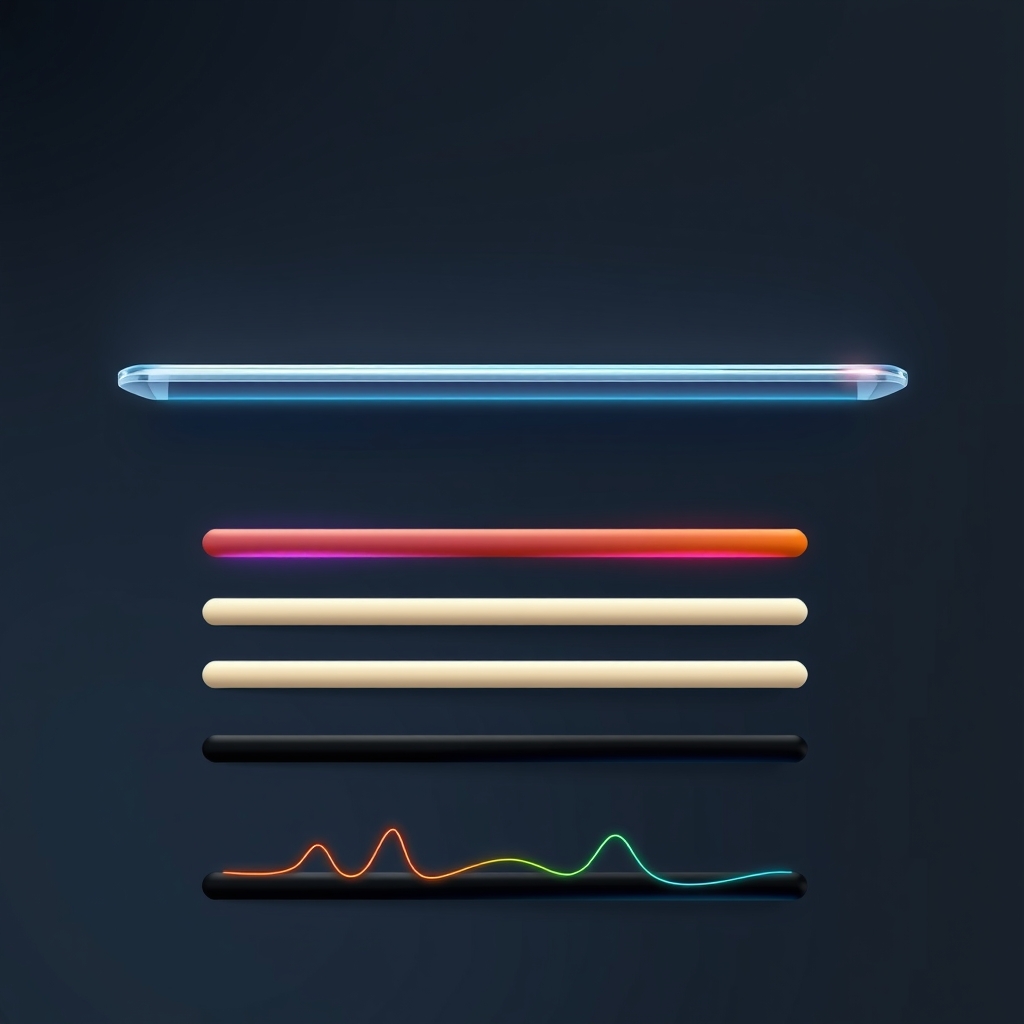
In Moor, a theme sets how a dock looks: its material, tint, border, shadow, icon size, magnification and labels. Moor has seven built-in themes, and you can make your own. The full reference is in Themes.
Pick a built-in theme
Each dock has its own theme, so your main dock can use Glass while a slim side dock uses Terminal.
| Theme | What it looks like |
|---|---|
| Glass | Liquid Glass, the default |
| Clear | Clearer glass with a light rim |
| Midnight | Solid deep navy, with a bar under running apps |
| Paper | Solid and quiet: warm off-white in light mode, charcoal in dark |
| Neon | Glass with a violet cast, bigger magnification and a glow under running apps |
| Terminal | Compact and square, green labels, no magnification |
| Islands | The dock splits into separate pods at each divider |
To switch themes:
- Press Control-Option-E, or choose Edit Docks from Moor's menu bar icon.
- Open the Theme menu in the toolbar above the dock.
- Pick a theme. The dock changes right away, so try a few.
- Press Done, or Control-Option-E again.
You can also open Settings → Docks, select the dock and set Theme there. That page shows a live preview of the dock on your own wallpaper.
Make your own theme
You start a custom theme from a copy of a built-in one.
- Open Settings → Themes.
- Select the built-in theme closest to what you want.
- Choose Duplicate to Edit.
- Make your changes. The preview at the top is a real dock using the theme on your wallpaper, so you see each change as you make it.
- Go back to edit mode or Settings → Docks and give the new theme to any dock.
These are the controls:
| Setting | Options |
|---|---|
| Material | Liquid Glass, Clear Glass, Solid or Blur |
| Tint | A color, or Tint from wallpaper so the glass picks up each display's colors |
| Border and shadow | Border, border width and shadow |
| Layout | One bar or floating islands; icon size, spacing, padding, corner radius |
| Magnification | 1.0× (off) to 2.0× (double size), plus Magnification range |
| Labels | Never, on hover or always, and their size |
| Running indicator | The mark under open apps; bounce while launching |
| Widget text size | 75 to 150% |
| Light and dark | The same look in both, or a different one for dark mode |
Magnification range sets how far the growth spreads to the icons next to the one under your pointer. A small range at 1.4× looks calm. A wide range at 2.0× feels closest to the classic big Dock wave.
Share a theme with a link
To share a theme you made, select it in Settings → Themes and choose Copy Share Link. Whoever opens the link sees a preview at moorapp.com in light and dark, and Add to Moor saves a copy to their Settings → Themes. Their dock doesn't change until they pick the theme. The theme travels inside the link, so it never passes through Moor's server.
If you'd rather send a file, Export… saves the theme as a small file and Import… adds one. That works well for a team that wants the same company look on every Mac.
Deleted a theme by mistake? Delete… asks first and names the docks that use the theme, and those docks switch to Glass. Put Back, or Command-Z, brings the theme back. Its docks get it again unless you've picked a different look for them since.
Tips for a dock that matches your wallpaper or brand
- Match any wallpaper. Use Liquid Glass or Clear Glass with Tint from wallpaper. With several displays, each dock picks up the colors of its own screen.
- Brand colors for store owners and founders. Start from Paper or Midnight, set Material to Solid and enter your brand color as the Tint. Then give dark mode its own darker shade so the dock doesn't glare at night.
- A quiet dock for coding. Duplicate Terminal, set Labels to on hover and leave magnification at 1.0×. Raise Widget text size if you keep the Agents or CPU widgets in the dock and want to read them from across the desk.
- Designers who hate visual noise. Pair a Clear theme with Moor's icon styles. In Settings → Icons, choose Monochrome or Tinted to restyle every app icon at once (more on app icons). Icon styles only change apps. Folders, widgets and the Trash follow the theme.
- Carry the look to the menu bar. With Mast or Moor Bar turned on (Settings → Parts), both can Match a dock theme, and they follow your edits to that theme.
- Different looks for different docks. A Glass main dock and an Islands side dock look like separate tools, so you can tell them apart at a glance. The Docks page covers placing docks on other edges and displays.
Limits worth knowing
- The Islands theme always shows running apps in one scrolling row. Wrap to 2 rows only works with bar themes (details).
- With Reduce Motion on (System Settings → Accessibility → Display), magnified icons grow instantly instead of springing, and apps don't bounce.
- Themes only style Moor's docks. Apple's Dock keeps following your System Settings, and major macOS updates can reset Terminal tweaks to it, Appish notes.
Next steps
Pick a built-in theme in edit mode. Then duplicate it and change one thing at a time: material first, then tint, then magnification.
Moor has a free 14-day trial at moorapp.com.
Common questions
Does macOS have built-in Dock themes?
No. Apple's Dock settings in System Settings → Desktop & Dock cover size, magnification, position, minimize effects, auto-hide and indicators for open apps. macOS 26 Tahoe's Icon & Widget Style and Tahoe 26.1's Clear or Tinted switch, both under Appearance, are system-wide settings: they affect Dock icons along with widgets and other surfaces, not the Dock alone. Named themes like Glass, Midnight or Terminal come from Dock replacement apps such as Moor.
How do I make my dock match my wallpaper?
In Moor, open Settings → Themes, pick a built-in theme and choose Duplicate to Edit. Set Material to Liquid Glass or Clear Glass and turn on Tint from wallpaper. The glass then picks up the colors of each display's wallpaper, so docks on different monitors can look different. The preview at the top shows the result on your own wallpaper while you edit.
Can I share my custom dock theme with someone else?
Yes. In Moor's Settings → Themes, select a theme you made and choose Copy Share Link. Anyone who opens the link sees a light and dark preview at moorapp.com and can click Add to Moor to save a copy. Their dock only changes once they pick the theme. The theme lives inside the link, so it never passes through Moor's server. Export… and Import… also work with files.
Can different docks use different themes?
Yes. Every Moor dock has its own theme. Change it from the Theme menu in edit mode (Control-Option-E), or in Settings → Docks by selecting the dock and choosing Theme. A common setup is a Glass dock at the bottom with a compact Terminal or Islands dock on a side edge, which makes the two easy to tell apart at a glance.
What happens if I delete a theme a dock is using?
Moor asks first and names every dock that uses the theme. After you delete it, those docks switch to Glass. If you change your mind, choose Put Back or press Command-Z in Settings. The theme comes back, and its docks use it again unless you've picked a different look for them in the meantime.
Sources
- Change Desktop & Dock settings on Mac - Apple Support support.apple.com
- The macOS Tahoe Dock, Explained dockgroups.com
- How to Switch from Clear or Tinted Appearance in MacOS Tahoe - OS X Daily osxdaily.com
- Every Mac Dock defaults command, explained stilldock.com
- Best Mac Dock Customization Apps: Advanced Tweaks - Appish appish.app