# Keyboard shortcuts
| Action | Default |
|---|---|
| Switch to profile 1–9 | ⌃⌥1 … ⌃⌥9 (the first nine profiles) |
| Back to the last profile | ⌃⌥` |
| Profile picker | ⌃⌥Space |
| Search | ⌃⌥F |
| Edit docks | ⌃⌥E |
| Next profile | Not set |
| Previous profile | Not set |
| Undo last switch | Not set |
| Settings (with the menu open) | ⌘, |
In the profile picker and search: ↑ ↓ to choose, Return to go, Esc to close.
## Changing them
Open **Settings → Shortcuts**, click a shortcut and press the new keys. Click **✕** to clear one. Each profile can have its own shortcut too.
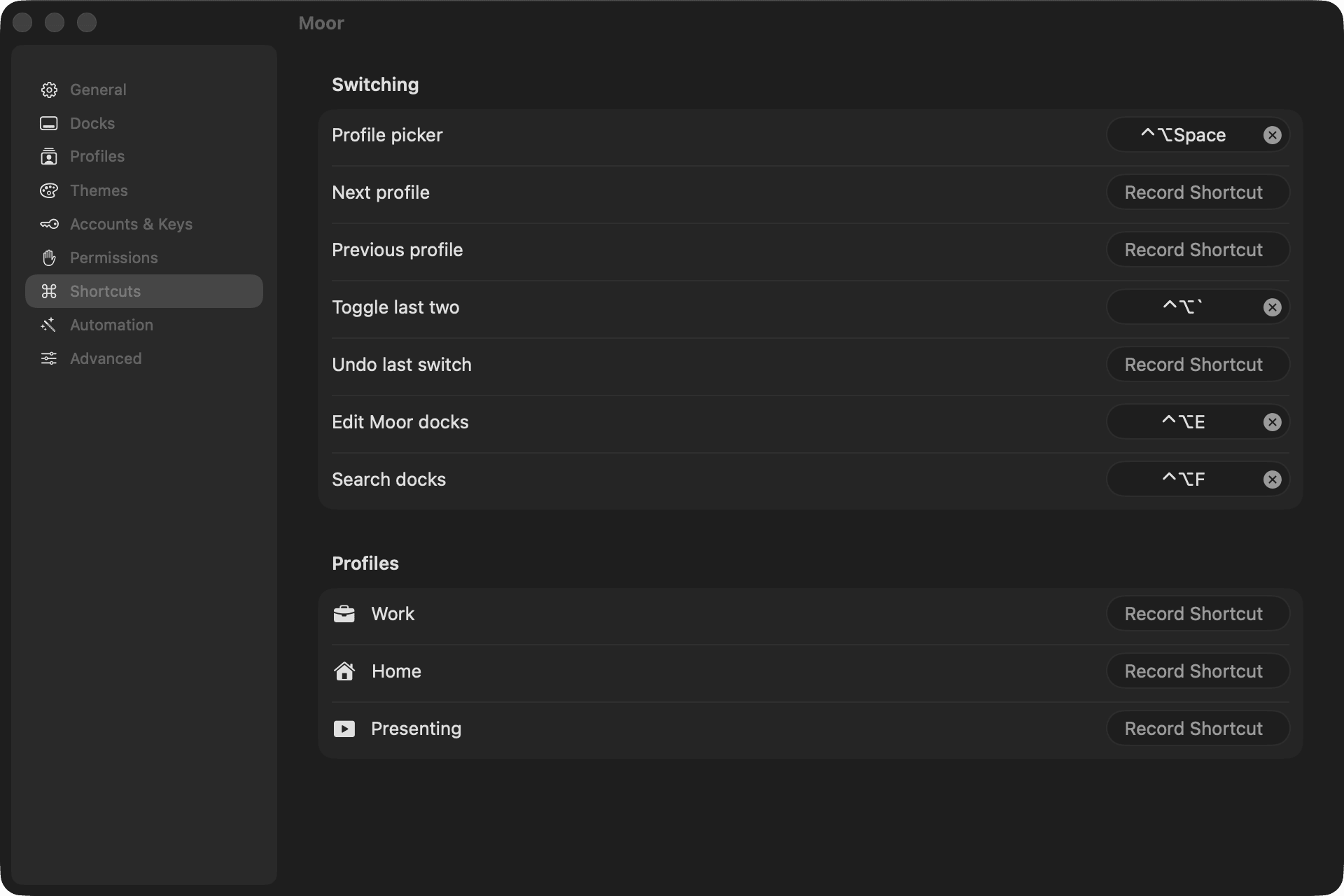
⌃ is Control, ⌥ is Option, ⌘ is Command.
---
Source: https://moorapp.com/docs/shortcuts/