# Hold
Hold shows what you have, not where you filed it. Your files are on shelves by kind, you can search in plain English, and it finds duplicates and old downloads to tidy up. It stands in for Finder when you're looking for something.
Turn it on in **Settings → Parts**. See [Turn parts on and off](/docs/parts/). Open Hold with ⌃⌥H, with **Hold → Open Hold** in the menu bar menu, or with **Open Hold** in **Settings → Hold**. You can change the shortcut there.
macOS may ask to let Moor use files in folders such as Desktop, Documents and Downloads. See [Permissions](/docs/permissions/).
## Shelves
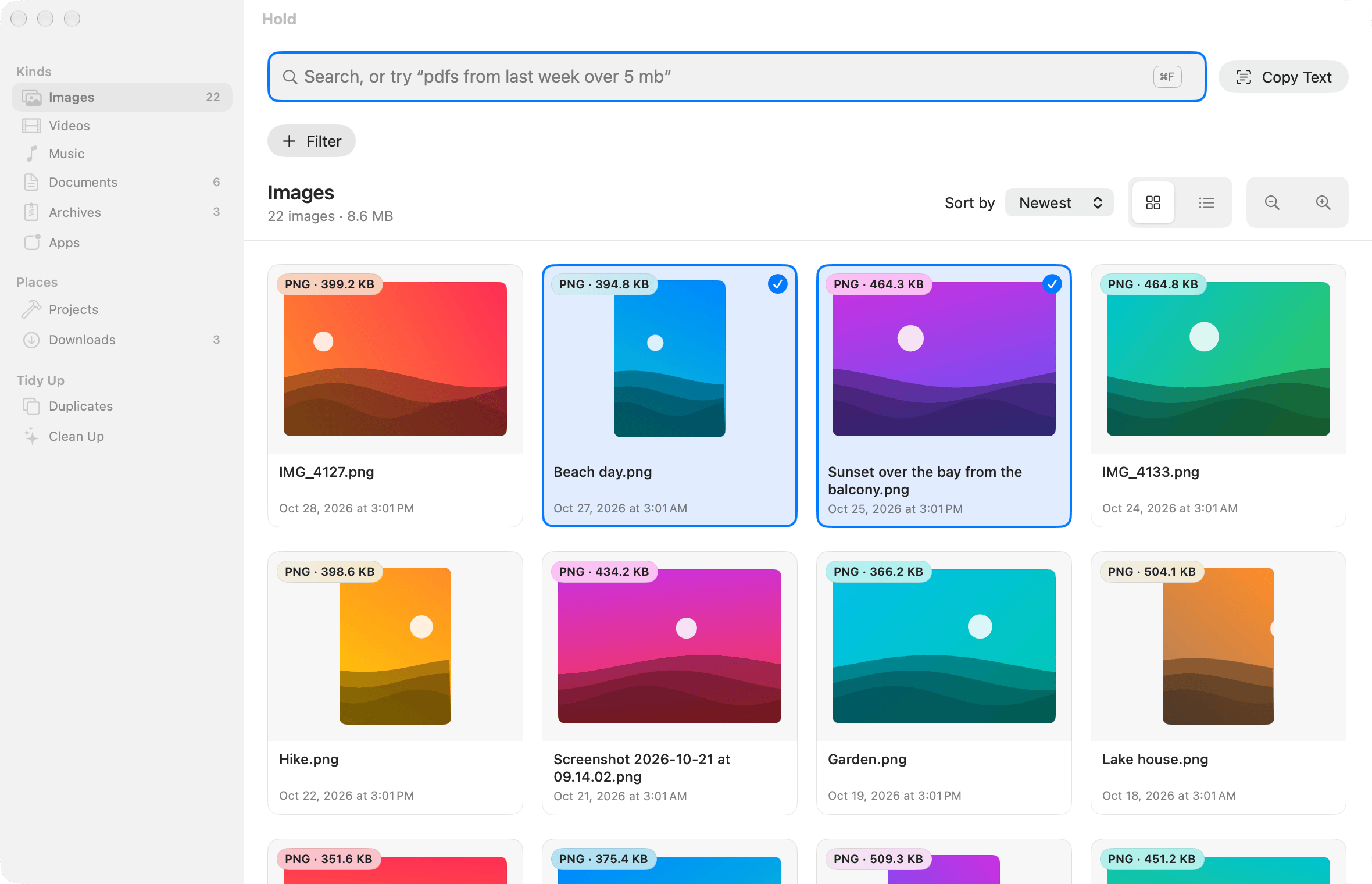
The sidebar has shelves:
| Group | Shelves |
|---|---|
| **Kinds** | Images, Screenshots, Videos, Music, Documents, Archives, Apps |
| **Places** | Projects (folders that are Git repositories), Downloads |
| **Tidy Up** | Duplicates, Clean Up |
The sidebar shows how many files each shelf has. Above the files, Hold says how many there are and how much space they take, such as “600 of 2,280 images · 2.8 GB”. A shelf shows 600 files at a time, newest first. Choose **Show More** for the next 600.
Files show as tiles: a thumbnail, the kind and size, the name and the date. Choose the grid (⌘1) or a list (⌘2). In the list, click a column title to sort by name, kind, size or date. In the grid, sort by **Newest**, **Biggest** or **Name**, and make the tiles smaller or bigger with ⌘− and ⌘+. Hold remembers your choice.
### Keyboard and mouse
| Do this | To |
|---|---|
| Click | Select a file, even in a Hold window that is behind another one |
| ⌘-click | Add a file to the selection, or take it out |
| ⇧-click | Select every file between the last one you clicked and this one |
| Double-click, or ⌘O | Open the selected files |
| Return | Rename the selected file |
| Arrow keys | Move from file to file, row by row |
| ⇧ and an arrow key | Select more files |
| Space | Quick Look. The arrow keys move it to the next file |
| ⌘A | Select every file on screen |
| Esc | Select nothing |
| ⌘C, ⌘V | Copy the selected files, paste files into the selected folder |
| ⌘D, ⌘I | Duplicate, Get Info |
| ⌘Z, ⇧⌘Z | Undo, Redo |
| ⌘⌫ | Move the selected files to the Trash. Hold asks first |
| ⌘F | Go to the search box |
The file the keyboard is on has a ring around it.
## Screenshots
With Hold on, every screenshot and screen recording you take shows in a corner of the display you took it on. It stays there until you dismiss it, so a capture never slips away before you've used it. This replaces Apple's floating thumbnail, which sometimes doesn't show up.
- **Follows you.** Move the pointer to another display and keep it there for a moment, and the stack moves to that display's corner. It stays put while you hold a mouse button (dragging a capture out) or point at it. Turn it off with **Follow me to other displays**.
- **Several at once.** New captures stack up. Point at the stack to fan it out; while you point at it, nothing leaves on its own.
- **On each capture:** drag it into any app, the Desktop or a dock (once something takes it, it leaves the stack unless it's pinned), or use **Copy**, **Markup**, **Pin**, **Keep in Hold**, **Move to Trash** (with **Undo**) and **Dismiss**. Right-click for **Open**, **Show in Finder** and **Copy Text** (the text in the picture). **Clear** takes every capture that isn't pinned off the stack, and **Show All in Hold** opens the **Screenshots** shelf. Dismissing or clearing never deletes the file.
- **From the keyboard.** Press ⌃⌥S, then move through the stack with the arrow keys: Return opens, ⌘C copies, P pins, K keeps in Hold, ⌘⌫ moves to the Trash, X dismisses and Esc goes back to your app. VoiceOver announces each new capture.
- **Never in the way.** The stack never takes the keyboard from the app you're using, and it stays out of screen sharing and other screenshots.
- **Kept files.** **Keep in Hold** marks a capture as one to keep: Clean Up never offers it. You can also right-click a screenshot in Hold and choose **Keep in Hold** (or **Don't Keep in Hold**).
- **The Screenshots shelf.** In Hold, **Show** narrows it to **Today**, **This Week**, the captures **Pinned** on the stack, or the ones **Kept** in Hold.
Moor finds new captures by the tags macOS writes on them, in the folder your screenshots are saved to (change it in the Screenshot app, ⇧⌘5 → **Options**). Other pictures in that folder are left alone. A recording shows once it has finished saving.
**Settings → Hold → Screenshots:**
| Setting | Default | What it does |
|---|---|---|
| Show new screenshots and recordings | On | The stack. Off gives you Apple's thumbnail back |
| Corner | Bottom right | Where the stack sits |
| Leave on screen | Until dismissed | Or 10 seconds, 30 seconds, 1 minute or 5 minutes; pinned captures always stay |
| Follow me to other displays | On | The stack moves to the display you move the pointer to |
| Include screen recordings | On | |
| Keep Apple's thumbnail too | Off | Apple's thumbnail holds each file back for about 5 seconds, so the stack shows it that much later |
| Use the stack with the keyboard | ⌃⌥S | The shortcut above |
**Apple's thumbnail.** While the stack is on, Moor turns off Apple's floating thumbnail (the `show-thumbnail` setting), saving yours first. When you turn the stack or Hold off, quit Moor or uninstall it, your setting is put back, and if Moor stops unexpectedly it's put back the next time Moor opens without Hold on.
## Work with your files
- **Drag** files out of Hold into Finder, the Desktop, Mail, Slack, a Custom Dock or anywhere that takes files. Drag one of several selected files and they all go. Finder moves or copies them as it always does: hold ⌥ to copy.
- **Drop** files on a folder in Hold to move them there. Onto another disk they're copied. Hold ⌥ to copy instead of move.
- **Copy and paste.** ⌘C copies the selected files, so ⌘V in Finder, Mail or Slack pastes them. Select a folder in Hold, or open the Downloads shelf, and press ⌘V to paste files there. If a file with that name is there already, the copy gets “ 2”: Hold never replaces a file. **Copy Path** (⌥⌘C) copies where the files are.
- **Rename.** Press Return, or choose **Rename…**. The name is selected without its extension, so “.pdf” stays unless you change it. Hold says why when a name can't be used, such as one with “/” or one that's already taken.
- **Right-click** for everything else: **Open With**, **Quick Look**, **Show in Finder**, **Get Info** (kind, size, where it is, when it was made and changed, where it came from, tags), **Compress** (a zip, like Finder's), **Duplicate**, **Make Alias**, **Move to…**, **Copy to…**, **New Folder with Selection**, **Share**, **Tags** and **Move to Trash…**. The same commands are in the menu bar's **File** menu while Hold is in front.
- **Undo** (⌘Z) takes back a rename, move, copy, duplicate, new folder, tag or move to the Trash. Files Hold made go to the Trash, so nothing is deleted. **Redo** is ⇧⌘Z.
- Big copies show their progress at the top, with **Cancel**. What's already copied stays, and Undo takes it back.
Hold reads your own folders: Desktop, Documents, Downloads and the rest of your home folder, plus Applications for apps. It leaves out Library, hidden folders and the insides of app and library packages.
## Search in plain English
Type what you're after. Hold searches as you type, a moment after you stop, and keeps the last results on screen until the new ones are ready. It turns your words into chips under the box, such as “PDFs”, “Last week” and “Over 5 MB”. Click a chip to change it, for example from “Last week” to “Last month”, or to remove it. Choose **+ Filter** to add a kind, date, size, source or folder. On a shelf such as Images, **+ Filter** narrows that shelf. Anything Hold doesn't recognize is searched for in file names and contents.
Examples Hold understands:
| You type | Hold looks for |
|---|---|
| `pdfs from last week over 5 mb` | PDFs from last week, over 5 MB |
| `videos from my iphone in august` | Videos taken with an iPhone in August |
| `zips bigger than 1gb older than 6 months` | Archives over 1 GB, older than six months |
| `pdfs from gmail` | PDFs that came from Gmail |
| `screenshots` | Screenshots |
| `invoice pdfs from last month` | PDFs from last month with “invoice” in them |
| `downloads from github` | Files in Downloads that came from GitHub |
| `"tax return 2024" from last year` | Files from last year with those exact words |
What it understands:
- **Kinds.** photos, pictures, images, videos, music, pdfs, docs, slides, spreadsheets, zips, archives, installers, dmgs, apps.
- **Dates.** today, yesterday, this week, last week, this month, last month, this year, last year, a month (“in october”, “in march 2024”), a year (“in 2024”), “last 30 days”, “newer than 1 year” and “older than 6 months”.
- **Sizes.** “over 5 mb”, “bigger than 1gb”, “under 10 kb”, “smaller than 2.5 mb”, and “big” or “huge” for over 100 MB. A number needs a unit: “over 5” alone is searched as words.
- **Sources.** “from gmail”, “from slack”, “from chatgpt”, “from github”, “from google drive”, “from dropbox”, “via whatsapp”, or any site, like “from example.com”.
- **Devices.** “from my iphone”, “from ipad”.
- **Folders.** “in downloads”, “on my desktop”, “in documents”.
- **Exact words.** Put them in quotes.
Hold's search uses Spotlight's index. If Spotlight is off for a folder, Hold can't see it. The one index Hold keeps itself is the words it reads in images (below).
Shelves and search results stay live while the window is open: a file you add, change or delete shows up or goes away without searching again.
## Text in images
Hold reads the words in your screenshots and photos, so a search finds an image by what's written in it. A match shows the words it found under the tile, such as Text: “INVOICE”, “2024”.
- **What it reads.** Screenshots of any age, and other images from the last 90 days, in Desktop, Downloads, Pictures and the folder your screenshots are saved to. It reads while the Hold window is open, a batch at a time at low priority, and stops when you close it. A new screenshot is read as soon as it arrives in the stack, so a search finds it straight away.
- **On this Mac.** Reading uses macOS's own text recognition, on device. Nothing is uploaded. The words are kept in Moor's folder (`hold/ocr-index/index.json`), and files you delete leave the index.
- **Copy Text.** Right-click an image and choose **Copy Text**, or select it and choose the **Copy Text** button by the search box. To copy from several, select them with ⌘-click or ⇧Space, then choose **Copy Text from N Images** (or the button).
- **Turn it off** in **Settings → Hold → Read text in images**. It's on to begin with. What was already read stays until it's pruned.
## Downloads, by where they came from
The **Downloads** shelf groups what's in your Downloads folder by source: Gmail, Slack, ChatGPT, GitHub, Google Drive, Dropbox, any other site by its name, and **Unknown source** for files that don't say. It uses the “where from” note macOS saves with a download. Files inside folders in Downloads aren't listed.
## Duplicates
The **Duplicates** shelf finds files with exactly the same contents. Only exact copies count. A resized photo or a re-saved document isn't a duplicate. Hold looks at files over 1 MB, and reads a file only to compare it with another of the same size. It compares the start and end of each file first, and reads the whole file only when those match. While it compares, the top of the window shows how far it has got.
The top of the shelf says how much space you'd free. **Trash All Extras…** keeps one copy in each group of exact copies and asks before it moves the rest. Look-alikes aren't included.
Each group shows its copies side by side. One is marked **Keep** and the others **Trash**. Hold keeps a copy that:
1. isn't in Downloads,
2. doesn't have a name like a copy's, such as “photo copy.jpg”, “photo 2.jpg” or “photo (1).jpg”,
3. is the oldest.
To keep a different copy, click it. **Keep 1, Trash 2…** names the copy it keeps and asks first.
### Look-alikes
Under **Look-alikes**, Hold groups photos that look the same but aren't exact copies, like a resized or lightly edited copy. It compares the newest 400 images of 200 KB or more, on this Mac. Each group keeps the biggest file unless you click another. **Keep 1, Trash 2…** names the one it keeps and asks first. Look before you trash: these aren't exact copies.
## Clean Up
The **Clean Up** shelf has up to three cards. Each shows its files, biggest first, and how much space they take. A card with nothing in it is left out, and a line says so.
| Card | What's in it |
|---|---|
| **Old installers** | Disk images and installer packages in Downloads from more than 30 days ago |
| **Big downloads** | Files over 500 MB in Downloads |
| **Old screenshots** | Screenshots taken more than 90 days ago |
Choose **Show files** to look. Every file is ticked. Untick the ones you want to keep. **Move 3 files to Trash…** names how many it moves, and asks first.
## Your files stay yours
- **Nothing is deleted.** Removing a file moves it to the Trash, and Undo or the Trash puts it back. Hold asks first. If one can't be moved, Hold says so.
- **iCloud-only files are skipped.** Files that are only in iCloud are never downloaded, and never read for duplicates, look-alikes or text.
## From agents
With Hold on, agents (the `moor_hold` MCP tool), scripts and the `moor` command can open Hold on a shelf or with a search typed in, switch **Read text in images**, change the screenshot settings, and fan out or clear the screenshot stack. Moor must be running with **Settings → Automation → Let apps and agents control Moor** on.
```sh
moor hold open downloads # or images, videos, documents, duplicates, cleanUp…
moor hold open --search "pdfs from last week"
moor hold settings
moor hold set screenshotsCorner bottomLeft # or screenshots, keepAppleThumbnail, screenshotsTimeout, screenRecordings, screenshotsFollow
moor hold screenshots show # or clear
```
Agents can't move, trash or delete files through Hold, and can't read what it finds, list your screenshots or see what's in them. Clean Up and duplicates happen only in Hold's window, after you confirm.
## What Hold doesn't do
- It doesn't browse folder by folder, or connect to servers. **Show in Finder** is always there.
- It never deletes a file: it moves files to the Trash, and asks first.
---
Source: https://moorapp.com/docs/hold/